CalcSolver: Free Online Scientific Calculator Guide
Most of us only open a calculator when we need one fast. Splitting a bill, checking a homework answer, working out a percentage before a trade. That’s exactly where CalcSolver fits in. It’s a free scientific calculator that runs in your browser, shows your answer while you’re still typing, and doesn’t ask you to sign up or install anything. It also hides a surprise: a full games library you can open with a 4-digit code.
If you already use our UG trade checker to make sure your dino deals are fair, you know the value of a tool that gives you a clear answer in seconds. CalcSolver does the same thing for everyday maths. Here’s what it is, how it works, and whether it deserves a spot in your bookmarks.
What Is CalcSolver?
CalcSolver is a web-based scientific calculator built for quick, accurate maths on any device. It handles the functions you’d expect from a school calculator: trigonometry, logarithms, square and cube roots, powers, factorials and percentages.
What sets it apart is the live answer. As you type a sum, a grey preview of the result updates on screen, so you can spot a mistake (a missing bracket, a wrong number) before you even press equals. When you press Enter, the answer turns bold and drops into your history.
You’ll sometimes see people search for it as “calc solver,” “calsolver” or “calcsolve.” They all point to the same tool.
CalcSolver at a Glance
| Feature | Details |
|---|---|
| Price | Free, with no account or trial |
| Installation | None; runs in any browser |
| Devices | Chromebook, laptop, phone, tablet |
| Core functions | sin, cos, tan, inverse trig, log, ln, √, ∛, powers, n!, % |
| Code Mode | 0000 opens 2,600+ free browser games |
| Privacy | History stays in your own browser |
How to Use CalcSolver in Four Steps
- Type or tap your sum. The whole expression stays visible on the top line, so you can read back exactly what you entered.
- Check the grey answer. It updates live. If it looks off, fix the input before you finish.
- Press = or Enter. The result locks in and saves to your history.
- Keep going. Press an operator right after a result to continue from it, or tap Ans to reuse your last answer in a new sum.
Three buttons sit above the display. DEG/RAD switches the angle unit for trig. SCI hides the scientific keys when you only need basic arithmetic, which helps on a small phone screen. The history icon lets you tap any earlier calculation to load it back. CalcSolver also remembers your DEG/RAD and SCI choices for next time.
Keyboard Shortcuts That Save Time
On a laptop or Chromebook, you can skip the mouse entirely:
- s, c, t open sin, cos and tan
- l, n open log and ln
- r gives a square root, p inserts π
- ^ raises to a power
- Enter solves, Backspace deletes, Esc clears everything
So pressing s, typing 30, and hitting Enter gives you sin(30) = 0.5 in degree mode. You can also skip the multiplication sign the way you would on paper: 2π, 3(4+1) and 2sin(30) all multiply correctly. Forget to close a bracket? CalcSolver closes it for you.
What Is CalcSolver Code Mode?
This is the feature most people are curious about. Tap the Code Mode switch at the top right of the calculator, and the display changes to four empty circles. The keypad stops doing maths and starts accepting 4-digit codes instead.
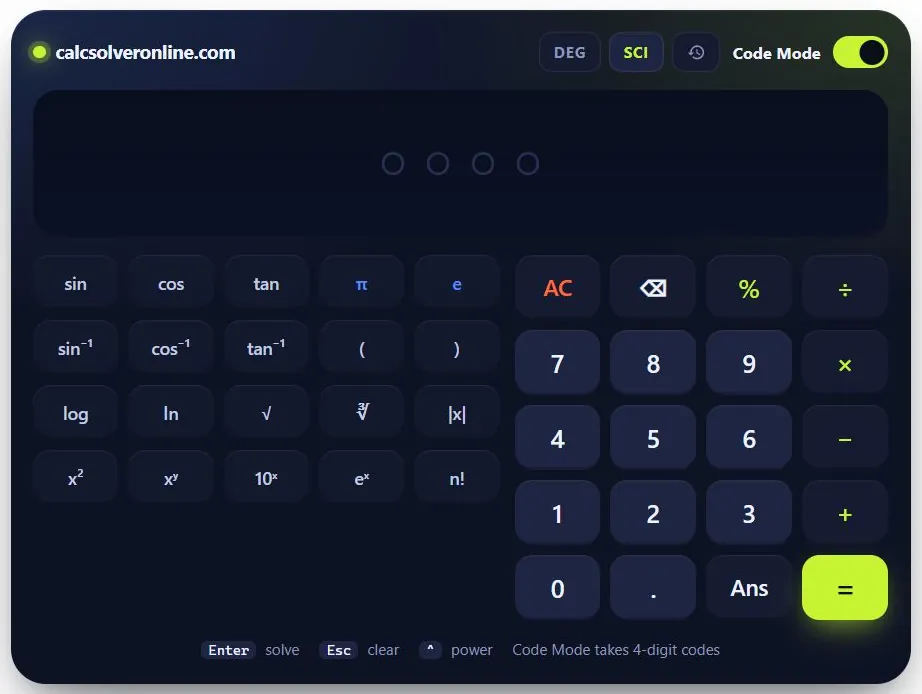
Type 0000 to Open the Games Library
Now press 0 four times. As soon as the fourth digit goes in, CalcSolver skips the calculator and opens a full browser games library. You don’t need any other code to get in. 0000 is the master key.
The library is much bigger than most people expect. It lists over 2,600 activities, sorted into categories like 3D, Action, Arcade, Adventure, Casual, Racing, Shooting, Puzzle, Dress Up and 2 Player. The home screen shows a featured game at the top, a Most Wanted row with popular picks, and a Trending now section below it.

Here’s what you can do inside:
- Search any game by name, or type its code into the search bar
- Save games to Favorites and pick up again from Recently played
- Open Secret codes to see codes for the most played games
- Hit Random when you can’t decide what to play
- Press the Calculator button (or Esc) to jump straight back to maths
Direct Codes for Each Game
Every game also has its own number, shown on its card (for example, #1005). With Code Mode on, typing that number on the keypad opens the game directly, skipping the library. Codes are permanent, so one you remember today still works later.
A note for parents and teachers: the library never opens on its own. Someone has to turn on Code Mode and enter a code. The games come from a third-party provider and some show short ads. History and favourites are stored only in that device’s browser, not tied to any name or account.
Degrees or Radians? A 5-Second Check
Wrong trig answers usually come from the wrong angle unit, not a broken calculator. Type sin(30). If you see 0.5, you’re in degrees. If you see −0.988, you’re in radians. Use degrees for school geometry and triangles, and radians for calculus and physics. One tap on DEG/RAD switches between them.
Real Examples You Can Try
- 15% of 240: type
240 × 15%→ 36 - Add 15% to a price of 200: type
200 × 1.15→ 230. (Typing200 + 15%gives 200.15, because % only divides the 15 by 100.) - Height of a 10 m ramp at 30°: in DEG mode, type
10sin(30)→ 5 m - Ways 5 people can line up: type
5!→ 120
That percentage example trips up a lot of people, because phone calculators often treat “+ 15%” differently. It’s worth knowing before you rely on it for prices or trade values.
Why Your Answer Might Look “Wrong”
Almost always, CalcSolver is following maths rules correctly:
- −2^2 = −4, because the power is applied before the minus. Type (−2)^2 to get 4.
- 8 + 2 × 5 = 18, because multiplication comes before addition (PEMDAS/BODMAS).
- tan(90) in degrees shows Error, because tan 90° is undefined.
- √(−4) shows Error, since negative numbers have no real square root.
It also handles rounding cleanly. Where some calculators show 0.1 + 0.2 as 0.30000000000000004, CalcSolver displays 0.3.
What CalcSolver Can’t Do
CalcSolver does not solve equations for x, do derivatives or integrals, draw graphs, or show answers as fractions (1/3 appears as a decimal). For those, you’ll want a graphing or algebra tool. The calculator keeps working once the page has loaded, but the games library needs an internet connection.
CalcSolver vs Phone and Handheld Calculators
| CalcSolver | Phone calculator | Handheld scientific | |
|---|---|---|---|
| Cost | Free | Free | One-time purchase |
| Shows full sum | Yes, with live answer | Usually only the result | Most models |
| Tappable history | Yes | Some apps | Limited |
| Keyboard input | Yes | No | No |
| Allowed in exams | Check your rules | Usually not | Usually, if approved |
For an exam, stick with the handheld your school approves. For homework, revision and quick daily maths, CalcSolver shows more and gets you there faster.
Frequently Asked Questions
Is CalcSolver free?
Yes. The calculator, Code Mode and the games library are all free, with no account or download.
What does code 0000 do in CalcSolver?
With Code Mode turned on, pressing 0 four times opens a library of more than 2,600 free browser games. Press Esc or the Calculator button to go back.
Does CalcSolver work on a phone or Chromebook?
Yes. It runs in Chrome, Safari, Edge or Firefox, and the keys resize for smaller screens.
Are my calculations saved online?
No. Your history is stored only in your own browser, and you can clear it from the history panel.
Where can I find CalcSolver game codes?
Each game’s code is printed on its card, and the Secret codes section in the library lists the most played ones.
Final Thoughts
CalcSolver does the simple things well. The live answer catches mistakes early, the keyboard shortcuts make it fast on a laptop, and there’s nothing to install. Code Mode adds a fun extra, with 2,600+ games one code away, without getting in the way of the maths. If you want a dependable scientific calculator that opens in a browser tab and just works, it’s a solid pick to keep bookmarked.